
The app
Marginalia
Notes, to-dos, references, research, and chat — anchored to the exact paragraph they belong to, living in the margin beside your prose and never inside it.
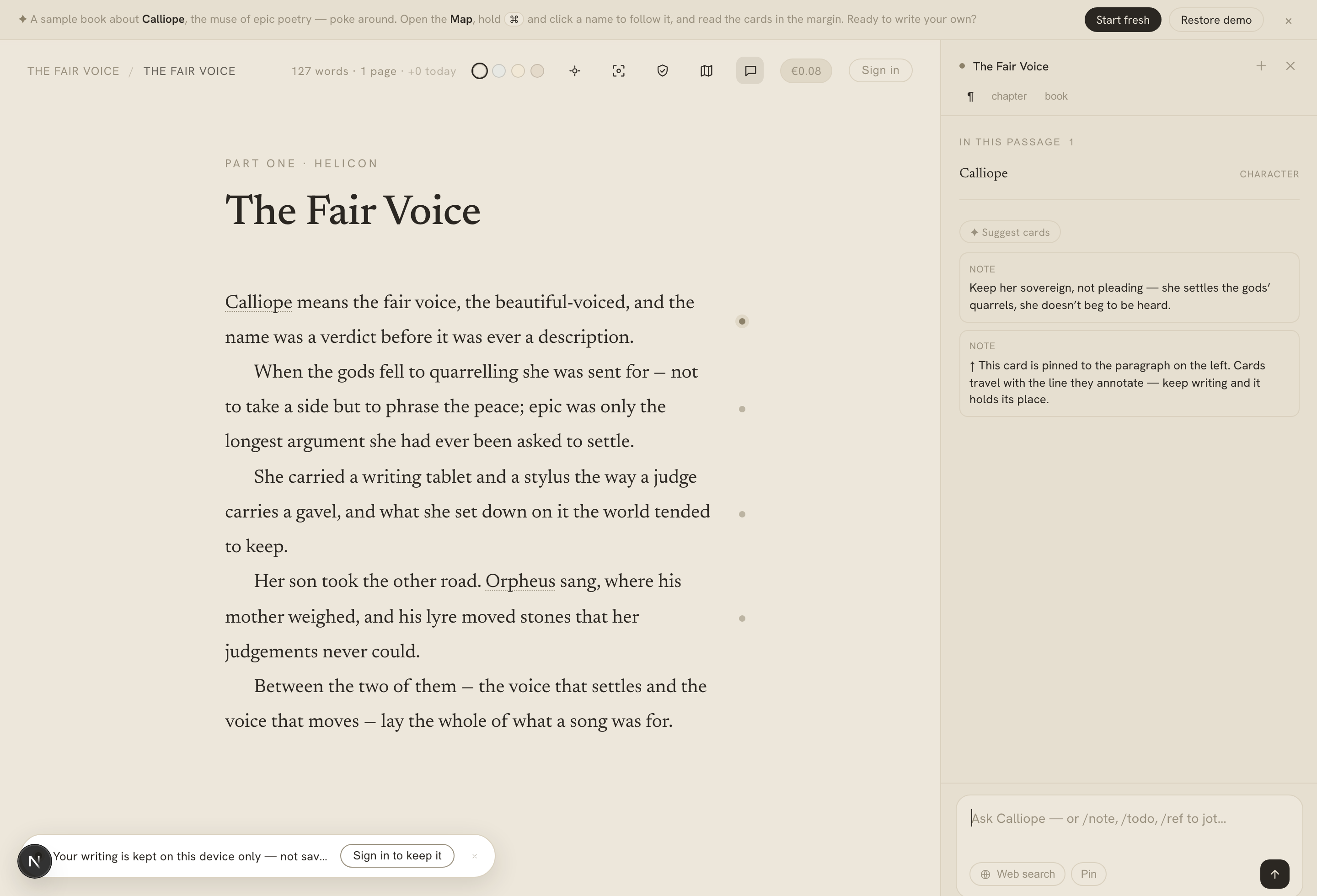
The marginalia pane, open on a paragraph — the facts in the passage, the note cards anchored there, and the composer below.
On this page
Every writer keeps a second layer around the book: reminders, questions, links, things to check. In Calliope that layer is marginalia, and it has a home — pinned to the paragraph it’s about, in the margin, where it can’t get tangled up in the prose itself. Calliope calls each one a snippet.
The kinds of snippet
There are five:
- Note — a short thought, optionally with a link.
- To-do — a checklist of items you can tick off.
- Reference — a piece of text or a link saved for later.
- Research — a research summary, optionally with its sources — often saved straight from an AI chat.
- Chat — a saved conversation thread with the AI companion.
You can create the everyday ones straight from the composer with slash commands — /note, /todo, /ref — without leaving the keyboard.
Where a snippet lives: scope
Every snippet is anchored at one of three scopes, and the scope is simply what it’s attached to:
- paragraph — pinned to a specific paragraph (the common case);
- chapter — attached to a chapter as a whole;
- book — attached to the whole manuscript.
A paragraph with anything anchored to it shows a filled gutter dot in the editor margin. Click the dot and the marginalia pane opens right beside that paragraph — the prose reflows to make room rather than being covered.
The pane
The pane is a single column beside your writing. Opened on a paragraph, it shows, top to bottom:
- the facts in that passage — the Map entities Calliope recognises there;
- the snippet cards anchored to your current scope;
- the chat thread and its composer.
Switch the scope — paragraph, chapter, or book — to widen or narrow what you see: just this paragraph’s notes, or everything in the chapter (including any that have come loose), or the whole book’s. When you start a chat, the facts and cards collapse into a compact pile with a summary (“3 notes · 1 todo”) so the conversation has room; click the pile to expand them again.
Editable cards
Notes, references, research, and to-dos are editable in place. Click a card’s pencil to edit its text (and a reference’s URL); tick or rename to-do items inline. Changes save the moment you commit them, and it all works the same whether you’re signed in or writing anonymously. Chat cards are shown as a read-only summary — the last message and a count — so a conversation stays visible at chapter or book scope, not just where it happened.
Jumping to the paragraph, and re-anchoring loose notes
A snippet knows the paragraph it belongs to, and that link goes both ways:
- Jump to the paragraph. A card anchored to a paragraph has a jump control in its header — click it and the editor scrolls to that paragraph and pulses its dot. From a chapter- or book-scope view, that’s how you get from a note back to the exact line it’s about.
- Re-anchor a loose note. If you delete the paragraph a snippet was pinned to, Calliope doesn’t throw the note away. It orphans the snippet up to chapter scope and marks it loose rather than losing it. To re-pin it, put your cursor in the paragraph it now belongs to and click anchor here — the note re-attaches and its dot lights up again.
That orphan-rather-than-delete rule holds for chat threads too: delete the paragraph a conversation started on and the thread falls back to the chapter and survives.
Research memory
When you ask the AI companion something with web search on, Calliope first checks — for free — whether you’ve already saved research on that question. If you have, it shows you the earlier note and a Search the web anyway button, so you don’t pay to re-answer a question you already answered. Saving an AI answer as a research snippet is one click (✓ kept), and it remembers what you asked, so the research layer becomes a searchable memory rather than a pile of loose links.
Chat threads are kept
Conversations with the companion persist as chat snippets anchored where they started. Reopen the pane on that paragraph and the thread is there, ready to continue. One live thread per anchor; starting a new conversation sets a fresh one. See The AI companion for what those conversations can do.